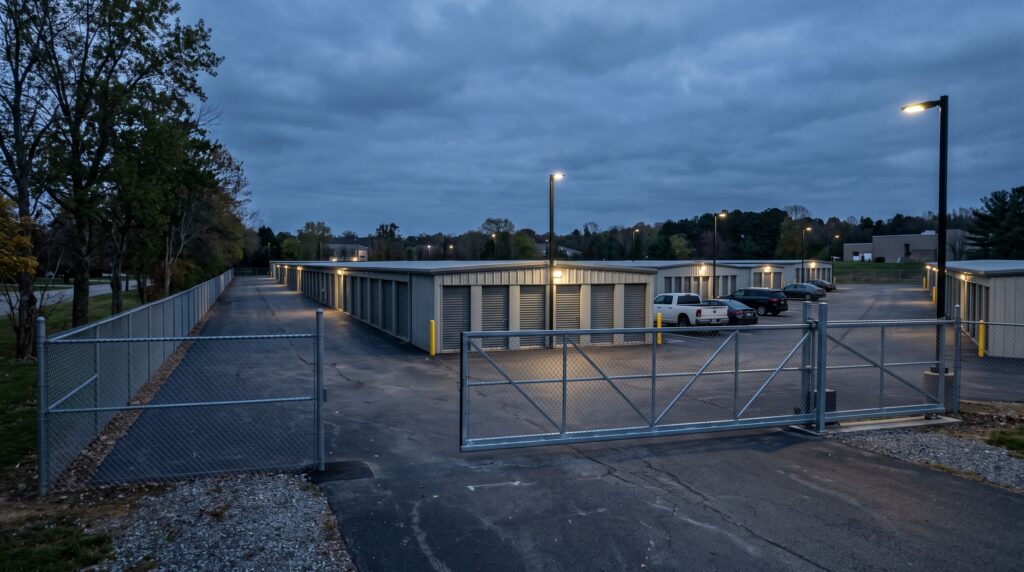
The call comes on a Saturday afternoon. A tenant is sitting at the gate of your second location, forty minutes from wherever you are, and their code will not work. When you had one site, you walked out and fixed it. With two, you are troubleshooting a keypad you cannot see, in a management system your first property might not even use.
Gate access across multiple storage facilities is the same set of small jobs it always was. You just do them from a screen now, for a property you are not standing on.
What Gets Harder at the Second Location
- A tenant cannot get in, and you are not there to see why.
- A tenant tells you something happened, and you were not there to see it.
- A new tenant needs a working code today.
- A site loses internet or power and goes quiet.
- A tenant owes you money and their code still opens the gate.
Remote lockouts: letting a tenant in when you are not on site

When a tenant’s code stops working, the cause is in your management software, the keypad itself, or both, and each gets fixed in a different place.
One screen in the admin tells you.
Every tenant gate code shows in the SpiderDoor admin as a red lock or a green lock. A red lock means your management software has locked the code, so that is where you fix it. A green lock means the software is fine, so the problem is elsewhere.
Either way, you know where the fix is before you decide whether to drive.
From the manager app you can open the gate yourself from anywhere with wi-fi or a cell signal. You can also add a master code in the admin. On SiteLink, a master code overrides the code in your management software and starts working immediately.
A master code keeps working until you delete it. Schedule it to delete itself after one use or on a set date, so an old one is not still opening the gate.
Activity logs: seeing what happened at a site you cannot visit
At one location you know who comes and goes because you are there. At five, the gate log is all you have.
Each location has its own log, and within an account you switch between locations in the admin to read them. Sites on different management software sit in separate accounts, so if you want every property’s activity on one screen, ask what that looks like for your setup.
The log shows who entered and when. When you are not on site, the log is the only record you have. It is how you check what a tenant tells you against what the gate recorded, and how you tell one tenant’s problem from a problem with the whole site.
New tenant access: getting a working code out today
New tenants and tenant payments update automatically within a few minutes.
The management software at that location decides how fast a code reaches the keypad. Some platforms sync in real time. Others sync every eight to twelve minutes. Edited codes are slower than new ones: on SiteLink, an edited gate code syncs roughly three times in a twenty four hour period. If a code change reaches one property faster than another, that is usually the software at each site, not the gate.
If something looks off, the Sync Location Codes button in the admin confirms everything is synced, and it can be used up to ten times in a 24-hour period.
A tenant with a future move-in date will not have a working code until that date arrives. If they need to get in before then, add a master code and schedule it to delete itself.
If your facility doesn’t use a property management system, you can set gate codes yourself, directly in the SpiderDoor admin.
Outages: what keeps working when a site loses internet or power
An outage rarely waits for someone to be on site, so how your keypads run without you is what counts. If the building’s internet drops, cellular keypads keep running. They connect over their own cellular signal, not the building’s network, which is also why they work at gates the wi-fi never reached.
Power is different, and not really a keypad question. The keypad and the gate motor both depend on site power, so during an outage both are down unless the entrance has backup power, like a battery or generator. Whether the gate stays shut or opens with the power out is set by the gate hardware, not the keypad.
Gate Codes for Tenants Who Have Not Paid
Your management software holds each tenant’s status and the rules that go with it. When an account goes past due, the software shuts off the gate code until the balance clears. In the SpiderDoor admin, this shows as a red lock, the same one you would check for any code that is not working.
What happens next depends on how the location is set up. SiteLink gives you a per-tenant override in either direction, “Always Lock Out at Gate” or “Never Lock Out at Gate”, and it applies whatever the balance is doing. That override is how you handle a tenant you have made an arrangement with, and it is the first place to look when a code is not behaving as expected.
Settings live in each location’s own management software. If your properties came from different owners, line those settings up side by side once and confirm they match what you intend. Check for stray master codes while you are there. One left in place opens the gate no matter what the balance says.
How Many Logins You Need Depends on Your Management Software
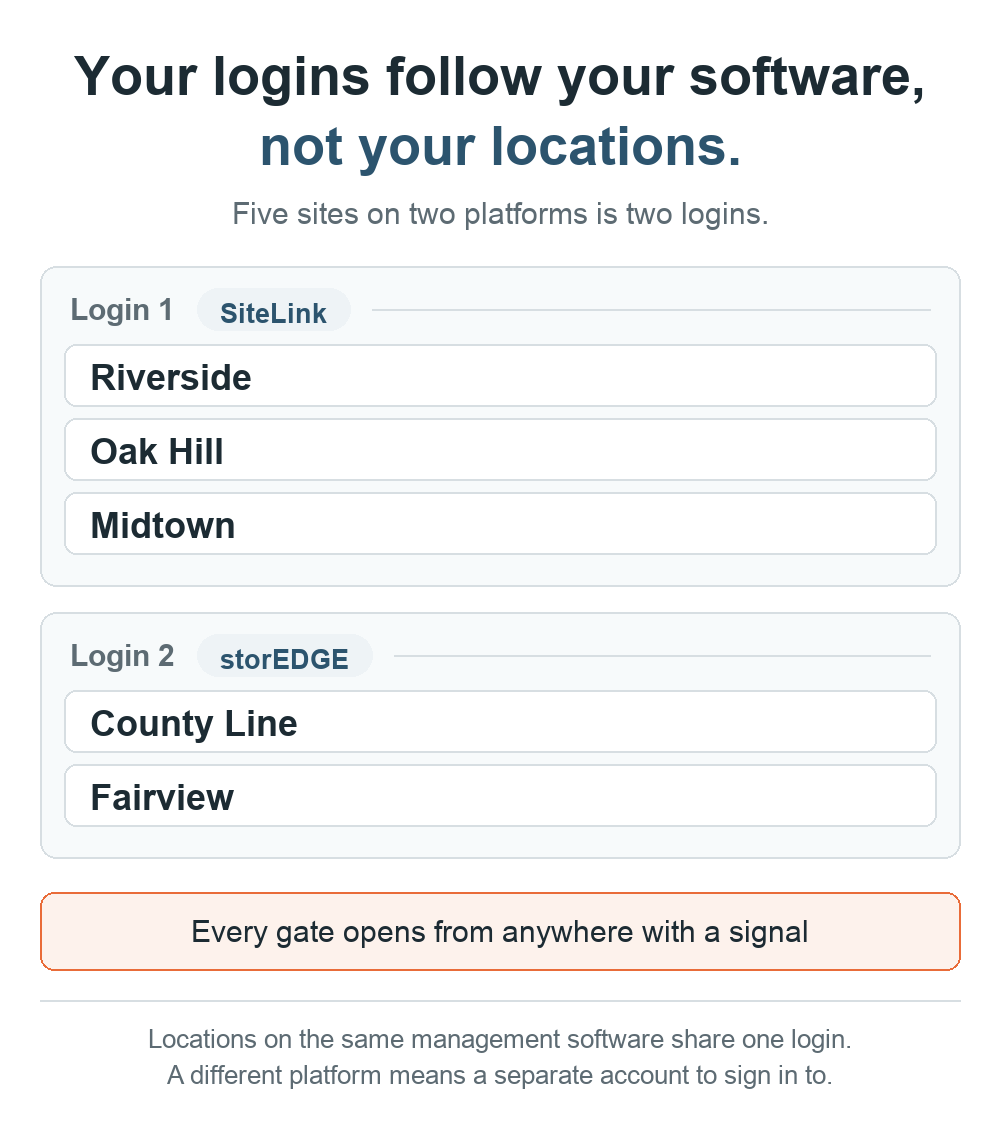
The number of logins you end up with has nothing to do with how many properties you own. It comes down to how many different management platforms those properties run on. And if one of your sites runs no management software at all, ask us where that one lands rather than assuming.
If all your locations run the same management software, one login covers them all. You sign in once and switch between properties in the dashboard.
If they run different software, you get a separate SpiderDoor account for each platform, and getting into the second means logging out of the first. Three sites on SiteLink and two on storEDGE add up to two logins.
Storage sites don’t always land on one platform. You buy a facility, it comes with whatever the previous owner ran, and consolidating everything is a project that takes time. That is fine: your sites do not have to run the same software for their gates to run on the same access system. SpiderDoor connects to SiteLink, storEDGE, Syrasoft, Storage Commander, DoorSwap, Domico, Self Storage Manager, and Web Self Storage, and the list runs longer than that, so ask us about yours if you do not see it named. Moving everything onto one platform is what gets you down to a single login.
Managers get their own login, and it follows the same rule as yours: one login covers the locations that share a management platform, and any location on a different platform needs a separate manager login there too. You set that up as the owner, and their credentials arrive by email. When someone leaves, you remove that login yourself. And if the owner role needs to move, it can be handed to someone else inside the company.
Not sure how your mix of software maps to logins? Tell us what each site runs and we will map it out for you.
What to Ask a Gate Access Vendor
These are the questions worth asking any vendor, including this one.
- How many separate logins will my setup need, and what decides that number?
- Can I give a manager access to only their locations, and can I remove it myself?
- What controls how fast a code change reaches the keypad, and is an edited code slower than a new one?
- Which management platforms do you connect to, and what happens at a site that runs none?
- When a site loses power or signal, what still works at the keypad, and how long until activity catches up?
- Where is a lockout decision made, in your system or in my management software?
Ask these before you sign, and you will know how the site will run before you are locked in.
If you are earlier in this and still working out how one facility runs without you on site, start with what management software does before layering on a second property.
Tell us how many locations you have and what software each one runs, and we can walk you through what your setup would look like.
Frequently Asked Questions
-
Can one login manage gates at all of my storage facilities?
Yes, if all of your locations run the same management software. One login covers them and you switch between locations in the dashboard. If your locations run different management software, there is a separate account for each management platform, and you log out of one to get into another.
-
Can I give a manager access to only one of my locations?
Yes. The owner creates a login for each manager at the locations you give them, and can remove that access later. A manager follows the same platform rule you do: covering sites on two different management systems means a separate manager login for each. The owner role itself can be handed to someone else inside the company.
-
How do I see gate activity for all of my locations?
Within an account you switch between locations in the admin to read each one’s log. Sites on different management software sit in separate accounts with separate logs, so if a single combined view across every property matters to how you operate, ask what that looks like for your setup.
-
Why is gate activity missing from one of my locations?
The log is cloud based, so entries can be slow to show up when a site loses power, internet, or cell signal. They usually catch up on their own. If an entry still has not appeared after about a day, call us.
-
How fast do gate code changes reach the keypad?
New tenants and payments update automatically within a few minutes. The speed is set by the management software at that location: some sync in real time, others every eight to twelve minutes, and on SiteLink an edited code syncs roughly three times in a twenty four hour period. There is a Sync Location Codes button in the admin to confirm everything is synced.
-
What happens to a tenant’s gate code when they have not paid?
Your management software holds the tenant’s status and the rules that go with it. When an account goes past due, the software shuts off the gate code on its own until the balance clears. What happens next depends on how the location is set up, and the SpiderDoor admin shows the code as a red lock so you can see why.
-
A tenant’s code is not working. How do I find out why?
Check the lock status in the admin. Red means your management software has locked the code and that is where to fix it. Green means your management software is not blocking the code. Check the code’s access schedule first, since a mismatched time zone can fail a code that looks fine, then check the keypad for power, internet, or cell signal.
-
What if one of my properties has no management software?
If a location has no management software, you set its gate codes directly in the SpiderDoor admin.